
There are 4 steps in creating a WordPress-based Website for a client called the 4 D’s. Discover, Design, Develop and Deliver.
Discover
The Discover process is about gathering all the client's wants and needs to guide the future design and development procedures.
We first obtain the website’s colour palette and any related media.
Using the chrome extension tool, eyedropper, identifying the colour palette for a website is easier. To build a palette the goal is to obtain the hex code of primary, secondary and text colours used in the website.

Ask for the sitemap/structure of the website or new proposed structure
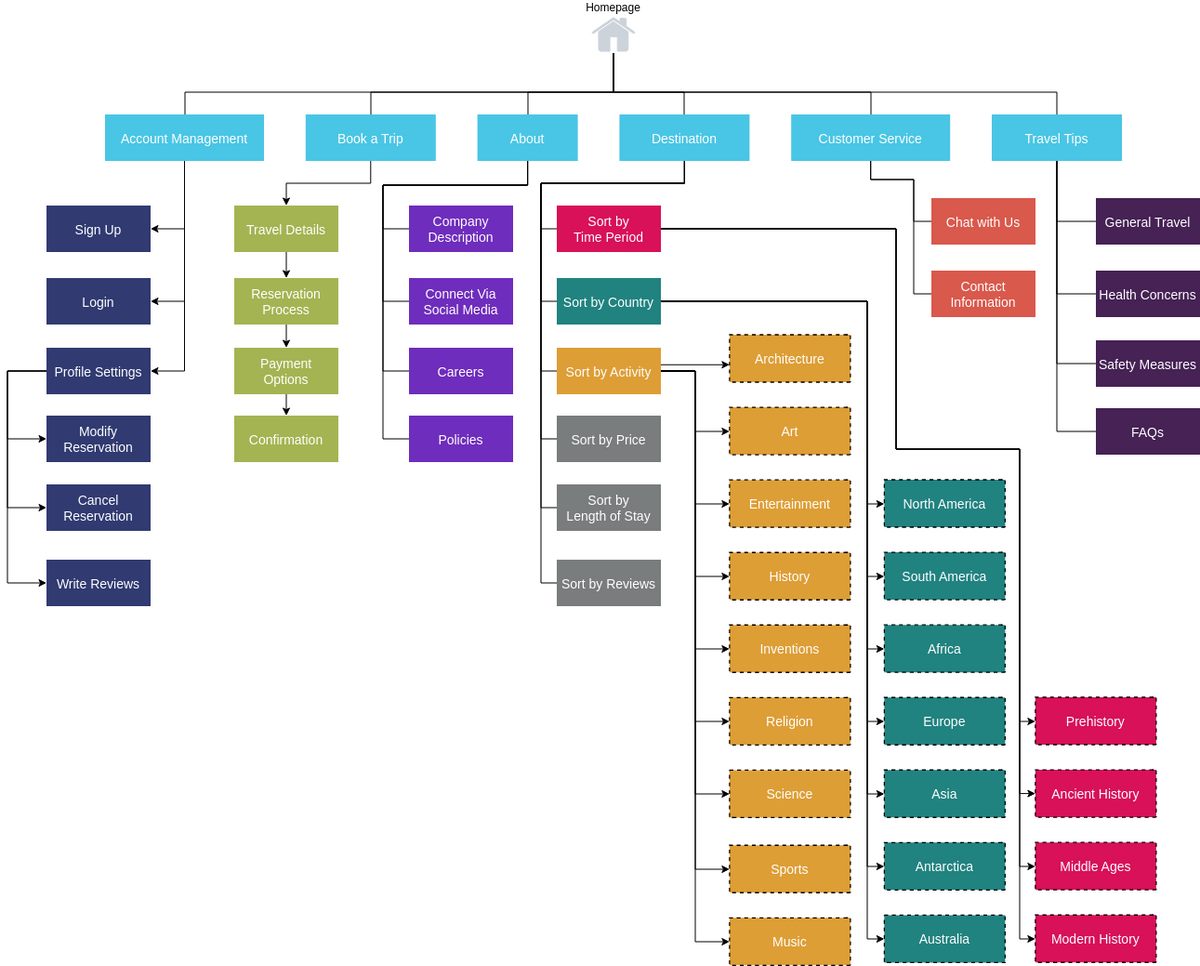
A sitemap is comprised of the labels of several pages a website's main menu can redirect you to. These labels also have their own menus called a drop-down. All of these comprise the full sitemap
For Organization Purposes it might be useful to put the sitemap in diagram form.
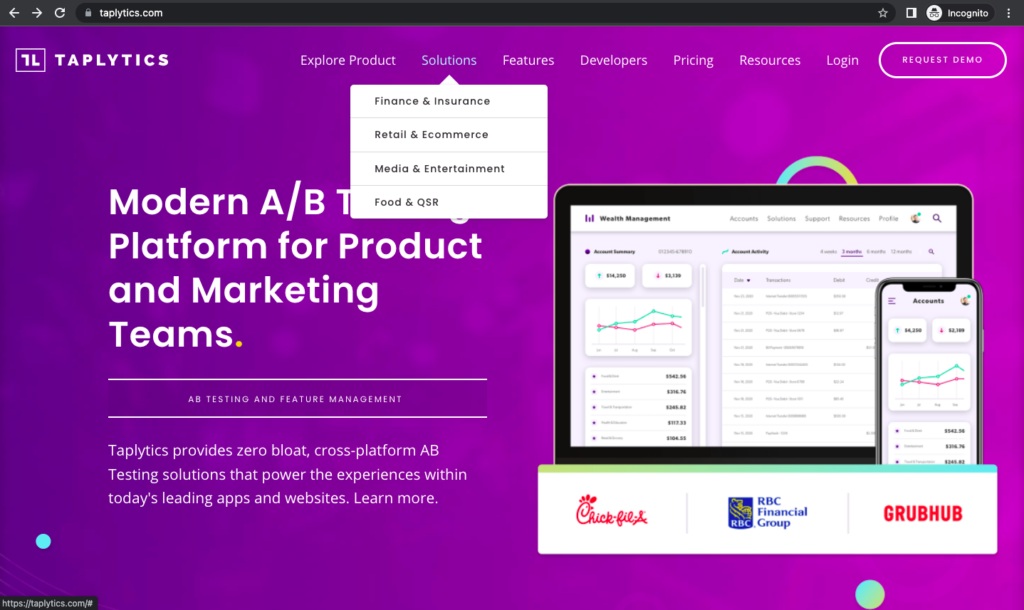
Research any companies and competitors in the client’s field. Anything they gave you or more
It may prove useful to do research on competitors in the same field in aiding the design process of your client's website. The reason we do this is that it would be a bad look for competitors' websites to be a lot more user-friendly and appealing than your client's own.
Download Figma and Gather everything you have obtained in the previous steps to create a brainstorming page
Figma is a collaborative interface design tool. It is a great place to compile all the previous steps into a brainstorming page and mood board.
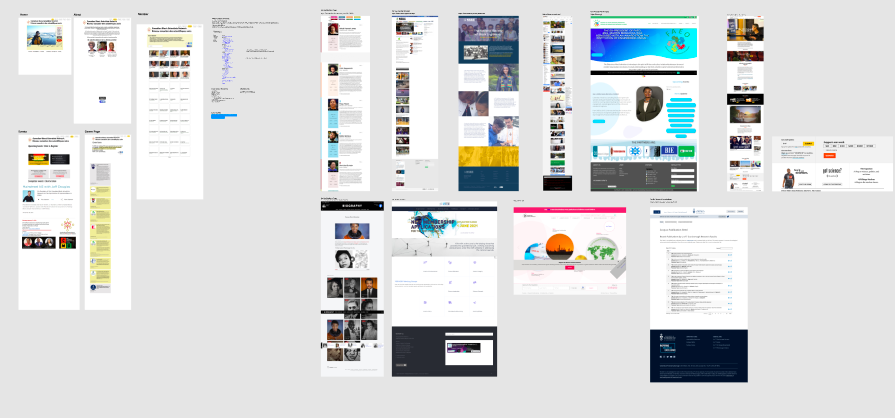
Make sure you are jotting down notes of common themes in a competitor’s website and what you can incorporate into your client’s website.
Design
In the Design process, you will begin to map out the preliminary design using Figma.
How Do I Use Figma? - Click link to find out more
We start by creating wireframes/preliminary designs for the each page on the websites main menu.
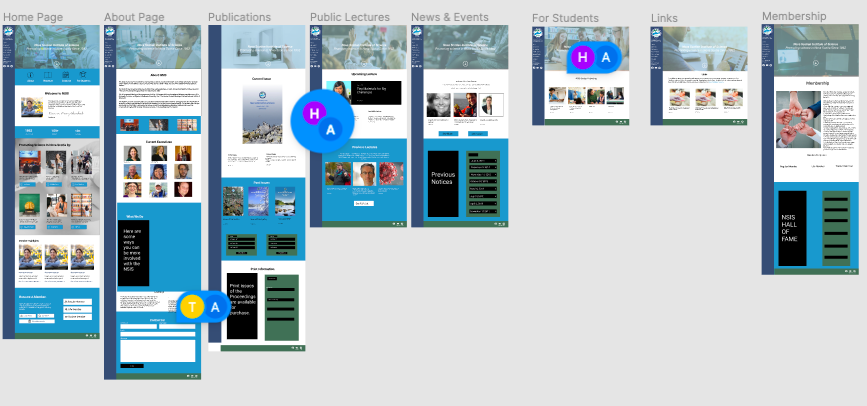
Make sure you send preliminary designs to the client and collect feedback later incorporating them into your preliminary designs.
Develop
In the Develop process you will learn to set up X themes and WordPress and address designs according to Figma.
Setting up WordPress
Purchasing Managed WordPress from GoDaddy
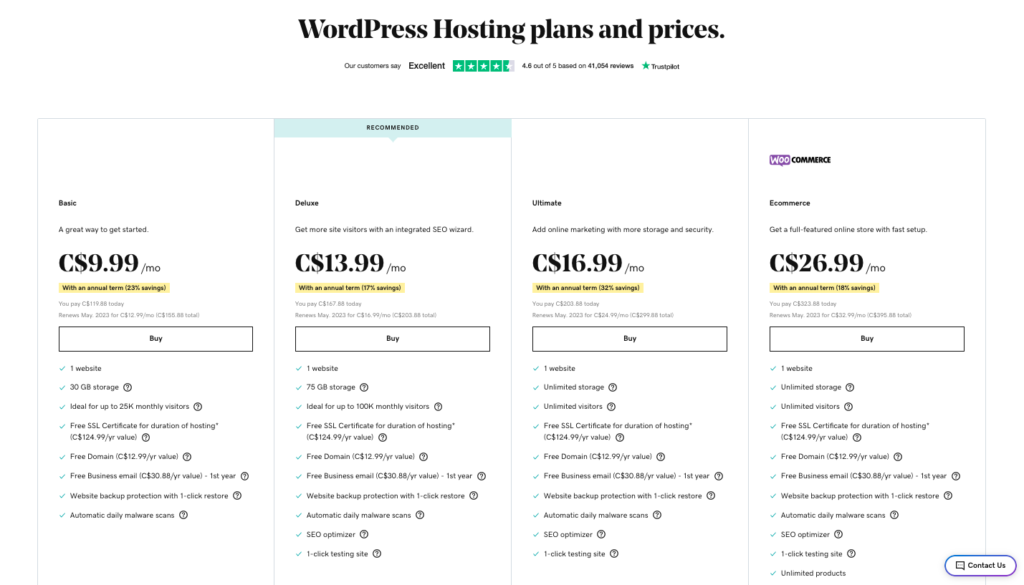
Installing Managed WordPress from GoDaddy
Follow GoDaddy's guide to install WordPress - Click Here
Follow GoDaddy's guide to install now you can set up X themes.
Setting up X themes
X: Downloading
There are two methods for downloading X, which we will cover below
ThemeForest – After logging in, hover over your account name in the top right corner of the screen and select Downloads from the dropdown menu: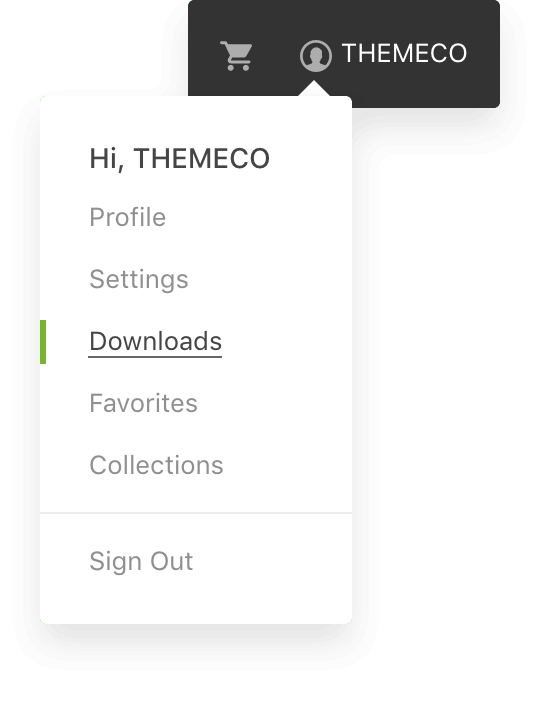
On the following page you will see a list of all items you've purchased. Locate X, click the Download button and select Installable WordPress file only from the dropdown: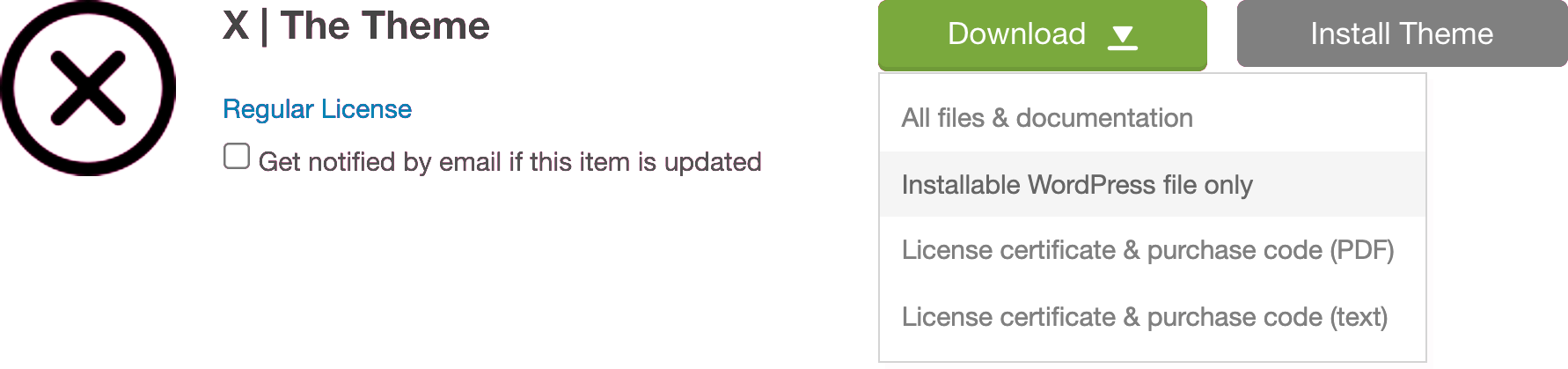
Themeco Dashboard – After logging in, select your license from the list in the sidebar. Once the main content on the right appears, select the Download button and the installation file will be saved to your computer: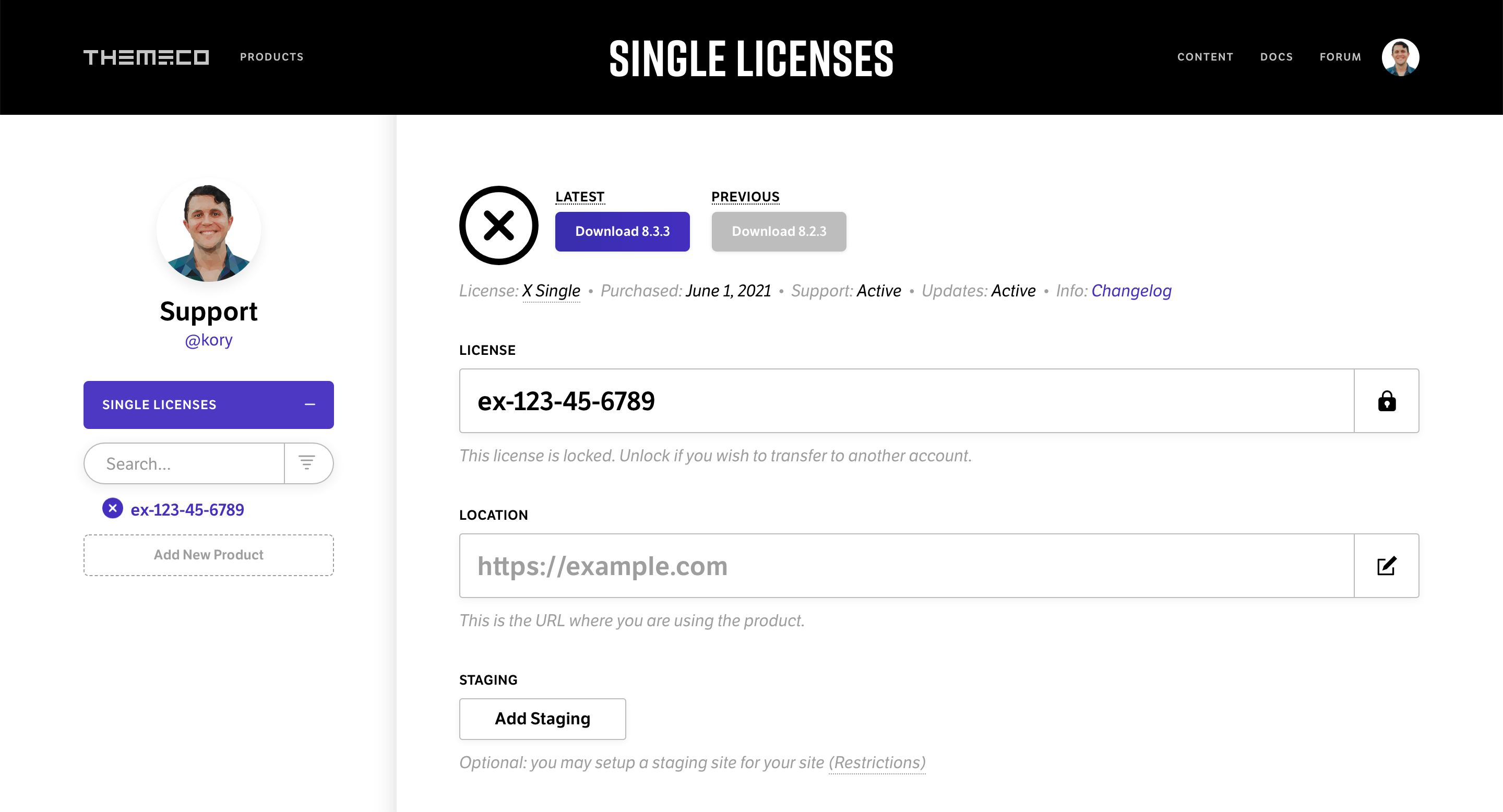
There are two options you can choose between: Latest, which is the most up-to-date version of X, and Previous, which is the “stability” version of X that you can downgrade to if you happen to run into any issues during the update process.
X: Installing
Now that you've downloaded the theme, you're ready to install it! In your WordPress admin, navigate to Appearance → Themes: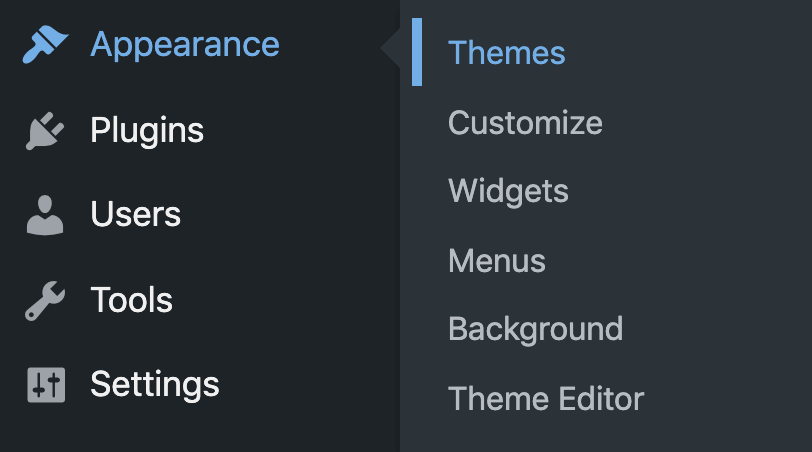
Once the Themes page has loaded, click Add New near the top:
Next, you'll be taken to the theme installation page. When that has loaded, click Upload Theme near the top:
Upon clicking that button, an upload form will appear below. Select Choose File within that form to locate the .zip file you download earlier on your computer: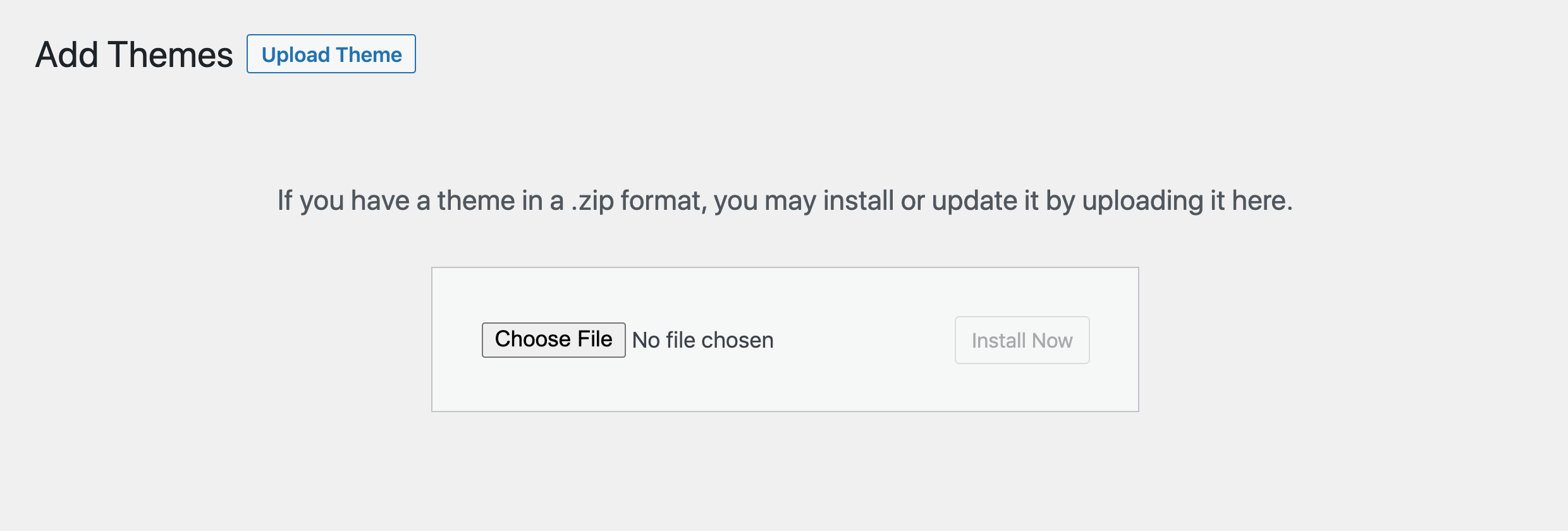
After locating and adding the .zip file, click the Install Now button: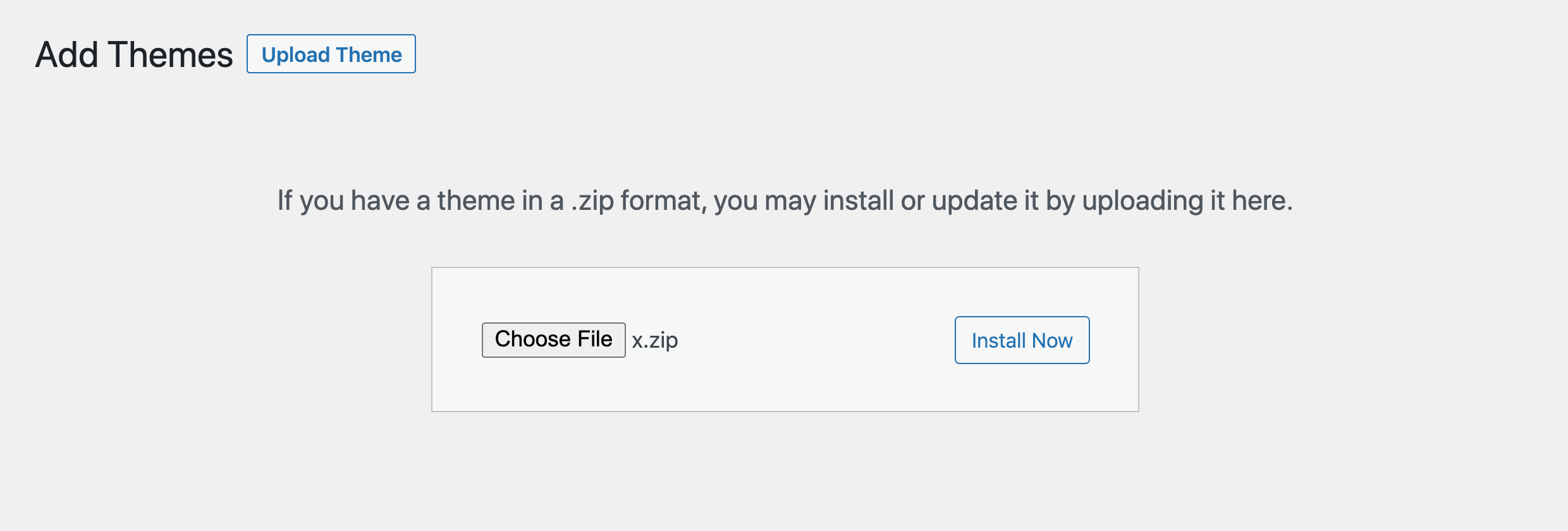
Upon successful installation of your theme files, you will see the following screen. Click the Activate link to enable X on your WordPress installation: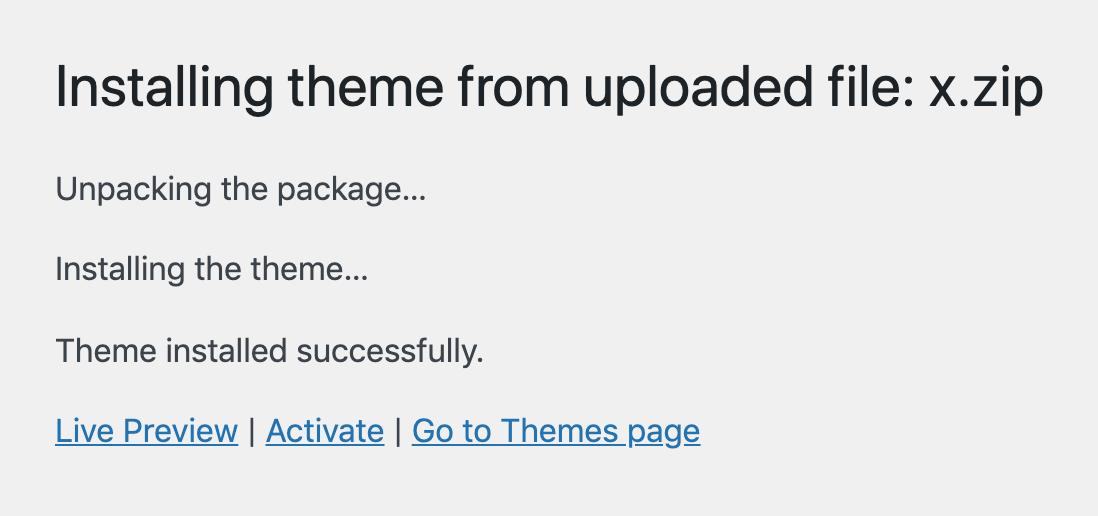
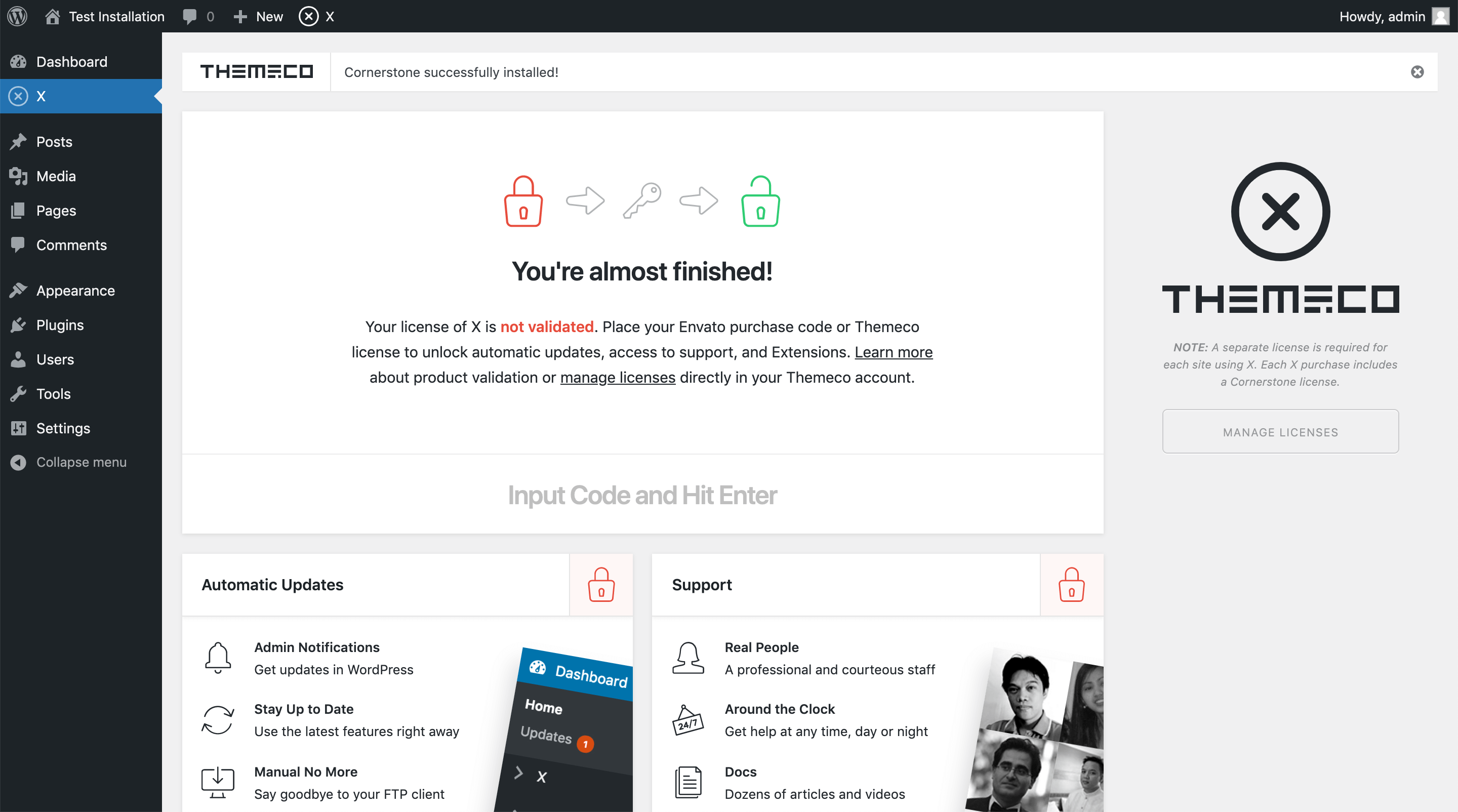
Once X has been activated, you will be taken to the theme dashboard. If this is your first time installing X on this WordPress installation, you will see a notice at the top of the screen prompting you to install and activate Cornerstone, which is required when using X. Click that link to finalize that process: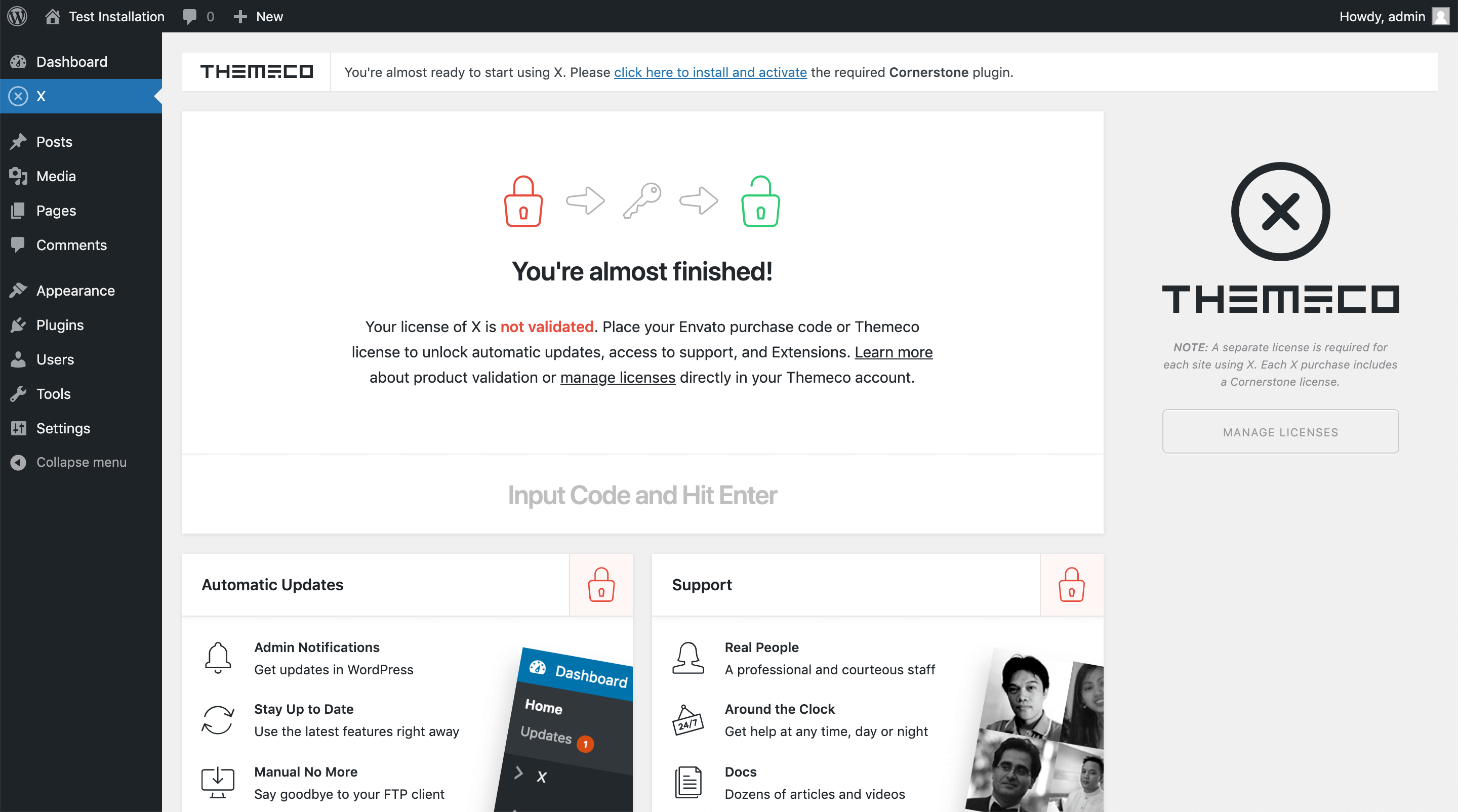
Delivery
Finally, in the Delivery Process, you check back in with the client to obtain feedback and implement it into what you already have.
Congratulations On your brand-new website
Recent Comments